
Creating a Gallery
This guide is for creators, or anyone else, who wants to create a gallery for a collection. After creation, the gallery can be submitted to ord.net for verification, allowing the collection to be opened for trading.
What is a gallery?
Section titled “What is a gallery?”A gallery is a special kind of inscription that contains a list of other inscriptions along with a title and traits for each. Galleries provide an on-chain record of an Ordinals collection and are particularly useful when parent/child provenance was not used when inscribing a collection. Ideally, a gallery is inscribed by the creator of the collection; however, there is no inherent provenance. You do not need to own or have anything to do with an inscription to include it in your gallery.
Before You Start
Section titled “Before You Start”Make sure you have the following:
- An image to represent the gallery
- The inscription IDs for every item you want included, usually in a previously submitted
marketplace
.jsonfile - The preferred item order, if not already established in an existing
.json - Collection-level metadata, such as traits
- An Xverse or Unisat wallet
Basic Process
Section titled “Basic Process”- Connect your wallet on inscribe.dev
- Upload the image that will represent your gallery. This image will become its own inscription
- Fill out the Attributes section:
- Title should be the name of your collection, such as Bitcoin Puppets
- Under Traits, add a
descriptiontrait and enter a text description for the collection
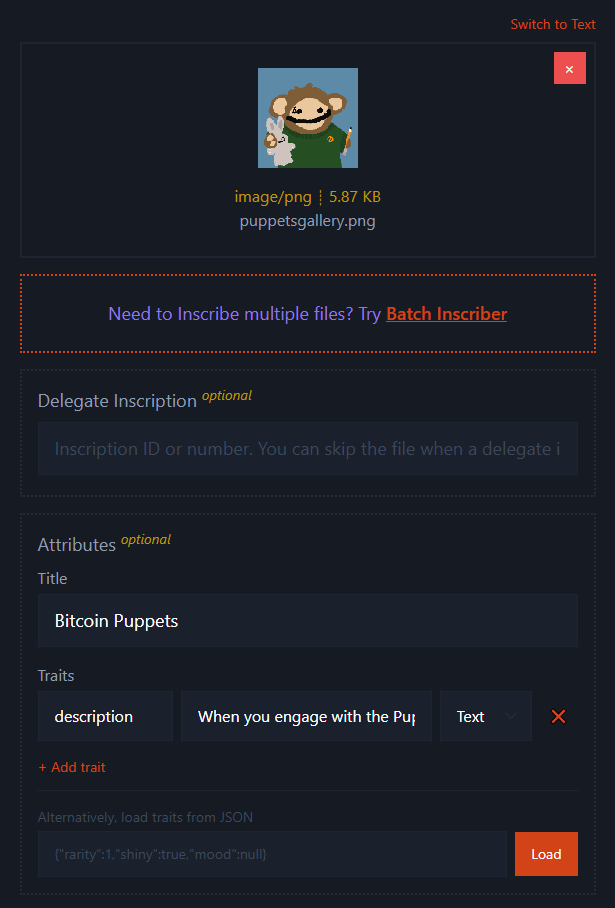
- Optionally add a Parent Inscription if you want the gallery to be a child of a parent
inscription representing the artist or collection
- For example, artist Billy Restey has used parent-child inscriptions to structure galleries
- Be sure the connected wallet holds the parent inscription
- Click Attach a Gallery
- If you already have marketplace metadata
.json, upload it here to auto-populate the gallery details - If you no longer have that
.json, you may be able to find it here- This is an unverified archive of legacy marketplace metadata
.jsonfiles, so all data should be checked carefully before use
- This is an unverified archive of legacy marketplace metadata
- If no metadata
.jsonexists, you can either create one yourself or use Add gallery item- Enter each inscription ID manually
- Add the corresponding title and traits for each item
- Review the item order carefully so the gallery displays as intended
- If you already have marketplace metadata
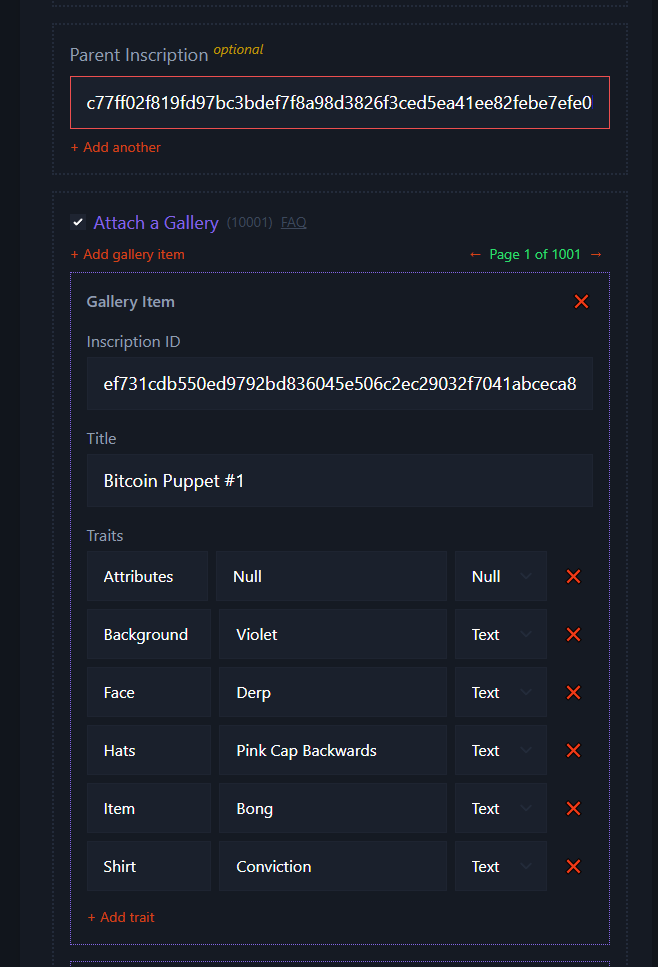
- Set your fee rate (e.g., 0.2 sat/vB), select Preview, and then inscribe!
Maximum Size Limitations
Section titled “Maximum Size Limitations”A standard Bitcoin transaction is limited to 400KB. If your gallery exceeds this, you can use MARA Slipstream to submit it.
- To use Slipstream:
- Check the minimum fee rate on slipstream.mara.com and use that fee rate when inscribing
- Check the Skip Broadcast option when inscribing
- Sign and download the inscription transactions
- Submit the first transaction (commit) via mempool.space/tx/push
- Wait for the commit transaction to confirm
- Submit the second transaction (reveal) via slipstream.mara.com
What Makes a Proper Gallery
Section titled “What Makes a Proper Gallery”A proper gallery should:
- Use only valid inscription IDs
- A clear collection title
- Include all intended inscriptions, with no unintended duplicates or missing/malformed inscription IDs
- Have inscriptions in the correct item order (e.g., Bitcoin Puppet #1, Bitcoin Puppet #2, etc…)
- Consistent traits included, where applicable
Common Mistakes to Avoid
Section titled “Common Mistakes to Avoid”- Submitting before the item list is finalized
- Including incorrect inscription IDs
- Using inconsistent ordering
- Trusting marketplace metadata without verifying it
- Confusing a gallery with a parent-child collection structure
After Creation
Section titled “After Creation”Once the gallery inscription is created, its inscription ID will be used for submission and review, covered in Listing a Collection.